
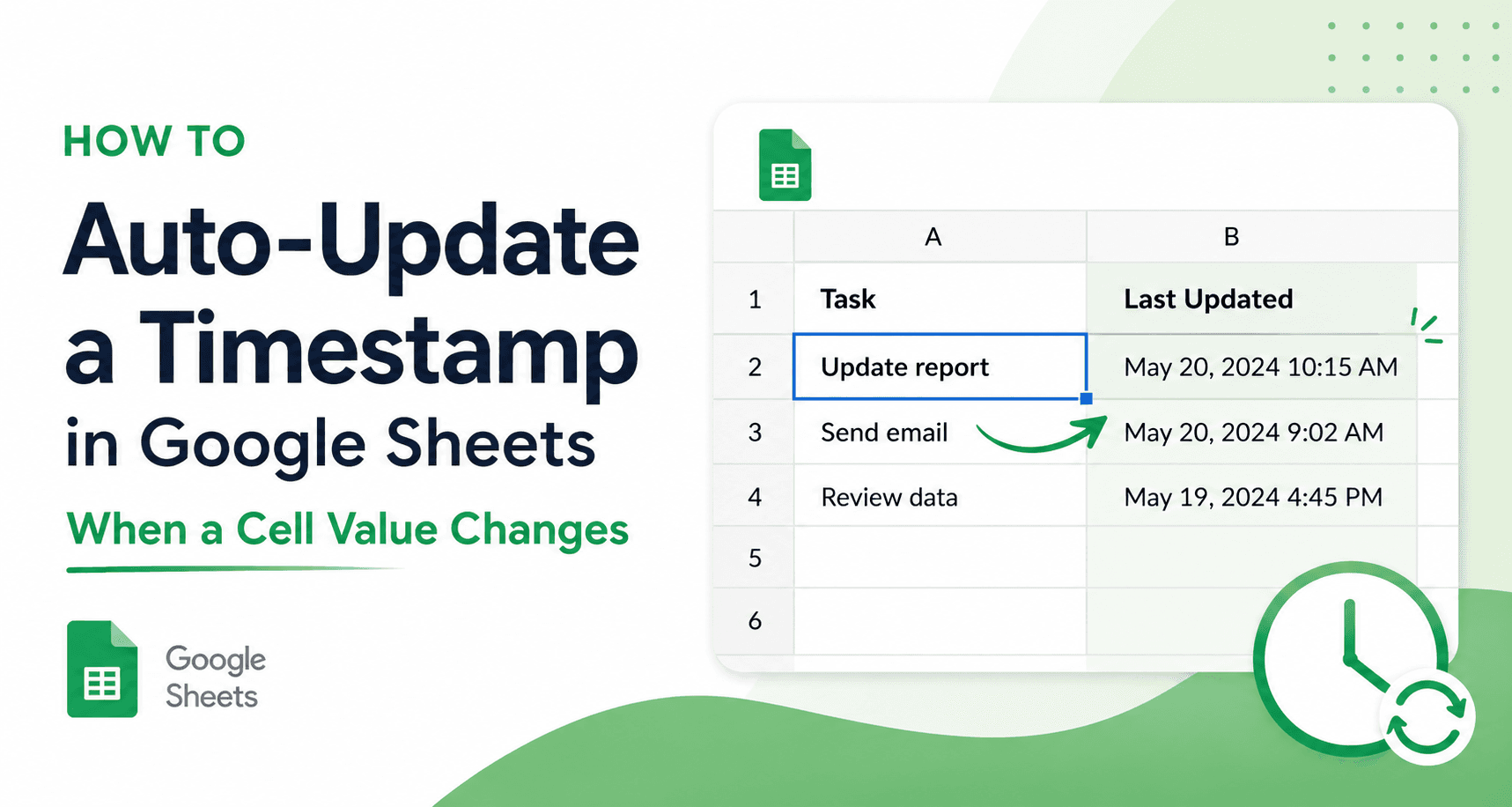
If you manage a task tracker, project status sheet, or any spreadsheet where you need to know when something last changed, you've probably tried using NOW() or TODAY() for a "Last Updated" column.
The problem: those formulas recalculate every time the sheet opens or any cell is edited elsewhere. Every timestamp in your sheet resets, which defeats the purpose entirely.
The reliable solution is a Google Apps Script trigger that runs only when the specific column you care about is edited. This article walks you through writing that script from scratch and explains every line so you understand what's happening.
What We're Building
Imagine a spreadsheet that tracks task statuses:
| # | Task | Status | Last Updated |
|---|---|---|---|
| 1 | Design mockup | In Progress | 6/10/2026, 2:34 PM |
| 2 | Write copy | Done | 6/11/2026, 9:01 AM |
| 3 | QA review | Pending |
The goal: whenever someone changes a value in the Status column (column G), the corresponding cell in the Last Updated column (column I) automatically gets stamped with the current date and time.
The script works regardless of what value is entered. It only cares that the Status column was touched.
Why Not Use a Formula?
Quick summary of why formula-based approaches break down:
NOW(): recalculates on every sheet open and every edit anywhere in the sheet. All your timestamps overwrite themselves constantly.LAMBDA/IF(G2<>"", NOW(), ""): same problem, still volatile.ARRAYFORMULA: same problem.
Scripts using the onEdit trigger, on the other hand, fire only when a real human edit happens. The timestamp is written as a static value, so it never changes until that cell is edited again.
Step 1: Open the Apps Script Editor
- Open your Google Spreadsheet.
- In the top menu, click Extensions → Apps Script.
- A new browser tab opens with the Apps Script editor.
- Delete any placeholder code already in the editor (usually an empty
myFunctionblock).
Step 2: Write the Script
Paste the following code into the editor:
function onEdit(e) {
  if (!e || !e.range) return;

  const range = e.range;
  const sheet = range.getSheet();
  const col = range.getColumn();
  const row = range.getRow();

  // Only run when column G (7) is edited, and not on the header row
  if (col === 7 && row > 1) {
    // Safety check: confirm this sheet has "Status" as the column G header
    const header = sheet.getRange(1, 7).getValue();

    if (header === "Status") {
      // Write current timestamp to column I (9) in the same row
      const timestampCell = sheet.getRange(row, 9);
      timestampCell.setValue(new Date());
    }
  }
}
Step 3: Understanding the Code
Let's walk through each part.
The trigger function
function onEdit(e) {onEdit is a simple trigger built into Google Apps Script. Google Sheets calls it automatically every time any cell in the spreadsheet is edited by a user. The e parameter is the event object, which carries information about what was just changed.
Guard clause
if (!e || !e.range) return;This exits immediately if the event object is missing or malformed. It's a defensive check, rare in practice but good hygiene.
Identifying what was edited
const range = e.range;
const sheet = range.getSheet();
const col = range.getColumn();
const row = range.getRow();e.range: the cell (or range) that was editedgetSheet(): the sheet tab containing that cellgetColumn(): column number (A=1, B=2, ..., G=7, I=9)getRow(): row number (1 = header, 2+ = data)
Column and row filter
if (col === 7 && row > 1) {col === 7: only act when column G was edited (Gis the 7th column)row > 1: skip the header row so editing the column label doesn't trigger a timestamp
Header verification
const header = sheet.getRange(1, 7).getValue();

if (header === "Status") {
This reads cell G1 and checks that it says "Status". Why? If your workbook has multiple sheets — a Resource tab, a Config tab, a Summary tab — those sheets probably don't have a Status column in G. Without this check, editing column G on any sheet would write a timestamp into column I on that sheet, which may contain completely unrelated data.
The header check ensures the script only runs on sheets where G1 is literally "Status".
Writing the timestamp
const timestampCell = sheet.getRange(row, 9);
timestampCell.setValue(new Date());
getRange(row, 9): column I (the 9th column) in the same row as the edited cellsetValue(new Date()): writes the current date and time as a static value
Because this writes a value (not a formula), the timestamp stays fixed until column G in that row is edited again.
Step 4: Save and Authorize
- Click the Save icon (floppy disk) in the toolbar, or press
Ctrl+S/Cmd+S. - Name your project something like
StatusTimestampwhen prompted. - Close the Apps Script tab.
The first time the script runs after saving, Google Sheets may ask you to authorize it. Click OK through the authorization dialog — this grants the script permission to read and write data in your spreadsheet.
Step 5: Test It
Go back to your spreadsheet and change a value in column G (on a sheet where G1 is "Status"). Column I in that row should immediately show the current date and time.
Try a few edge cases:
- Edit a cell in column H or F — no timestamp should appear.
- Edit the header cell G1 — no timestamp (row filter catches this).
- Switch to a sheet without
"Status"in G1 and edit column G — nothing happens (header check catches this).
Adapting the Script to Your Own Sheet
Your column layout is probably different from this example. Here's how to adapt the column numbers:
| Column Letter | Column Number |
|---|---|
| A | 1 |
| B | 2 |
| C | 3 |
| D | 4 |
| E | 5 |
| F | 6 |
| G | 7 |
| H | 8 |
| I | 9 |
| J | 10 |
Example: Status is in column D (4), Last Updated is in column F (6), and the header is "Task Status":
function onEdit(e) {
  if (!e || !e.range) return;

  const range = e.range;
  const sheet = range.getSheet();
  const col = range.getColumn();
  const row = range.getRow();

  if (col === 4 && row > 1) {
    const header = sheet.getRange(1, 4).getValue();

    if (header === "Task Status") {
      sheet.getRange(row, 6).setValue(new Date());
    }
  }
}
Only two numbers change: col === 4 for the watched column, and getRange(row, 6) for the timestamp column.
Formatting the Timestamp
By default, new Date() writes a raw date-time value. Google Sheets will display it using your spreadsheet's locale. To control the format, you can apply a number format to the timestamp column:
- Select column I (or whichever column receives the timestamp).
- Go to Format → Number → Date time (or choose a custom format).
Alternatively, set the format from the script itself:
const timestampCell = sheet.getRange(row, 9);
timestampCell.setValue(new Date());
timestampCell.setNumberFormat("MM/dd/yyyy HH:mm:ss");
Clearing the Timestamp When Status Is Cleared
If someone deletes the status value (leaving the cell empty), you might want to clear the timestamp too. Here's a small modification:
function onEdit(e) {
  if (!e || !e.range) return;

  const range = e.range;
  const sheet = range.getSheet();
  const col = range.getColumn();
  const row = range.getRow();

  if (col === 7 && row > 1) {
    const header = sheet.getRange(1, 7).getValue();

    if (header === "Status") {
      const timestampCell = sheet.getRange(row, 9);
      const newValue = range.getValue();

      if (newValue === "" || newValue === null) {
        timestampCell.clearContent();
      } else {
        timestampCell.setValue(new Date());
      }
    }
  }
}
range.getValue() reads the new value of the edited cell. If it's empty, the timestamp is cleared. Otherwise, it's stamped.
Common Issues
Timestamp doesn't appear at all
- Check that the header in your watched column's row 1 exactly matches the string in the
if (header === ...)check — it's case-sensitive. - Make sure you saved the script after pasting.
- Check the Apps Script execution log (Executions tab) for any errors.
Authorization prompt never appeared
- The script runs on save but authorization happens on first execution. Edit a cell in column G to trigger it.
All timestamps show the wrong timezone
new Date()uses the timezone of the Apps Script project, which defaults to your Google account's timezone. To change it: in the Apps Script editor, go to Project Settings (gear icon) and update the timezone.
Script runs on the wrong sheet
- Remove the header check temporarily and add a
console.log(sheet.getName())to see which sheet is being hit. Then adjust the header value or add a sheet name filter:if (sheet.getName() !== "Tasks") return;
Wrapping Up
Formula-based timestamps break because volatile functions recalculate on every sheet open. A simple onEdit script solves this cleanly: it fires only on real edits, writes a static value, and ignores sheets where the column layout is different.
The full script is less than 20 lines and requires no external libraries or paid features. The built-in Apps Script editor ships with every Google account.
Once you understand the pattern, you can extend it in many directions: watch multiple columns, write to multiple timestamp cells, log changes to a separate audit sheet, or send an email notification when a status hits a specific value.